Update to the latest version
If the phone already has LlamaditApp (for example, version 1.1) and you want the latest one, you do not need to factory-reset it. It updates in about 10 minutes with the same Windows installer, and everything is kept.
What is kept
- Contacts, their photos and their order.
- The caregiver PIN and every panel setting (SOS contact, who can ask for the location, keywords…).
- WhatsApp and its video calls.
- Kiosk mode: LlamaditApp stays in control of the phone.
What you need
- A Windows computer with internet access.
- The phone's USB cable.
- The phone more than half charged.
- The caregiver PIN.
1Check your version and pause kiosk mode
- On the phone, press and hold the clock for 5 seconds and type the caregiver PIN.
- Scroll to the bottom of the panel. Under About you will see the installed version (in the screenshot, LlamaditApp 1.1). The latest version is always on the download page.
- A little higher up, under Kiosk mode, tap Pause kiosk mode. This lets the phone show any prompts needed during the update. You will turn it back on at the end.
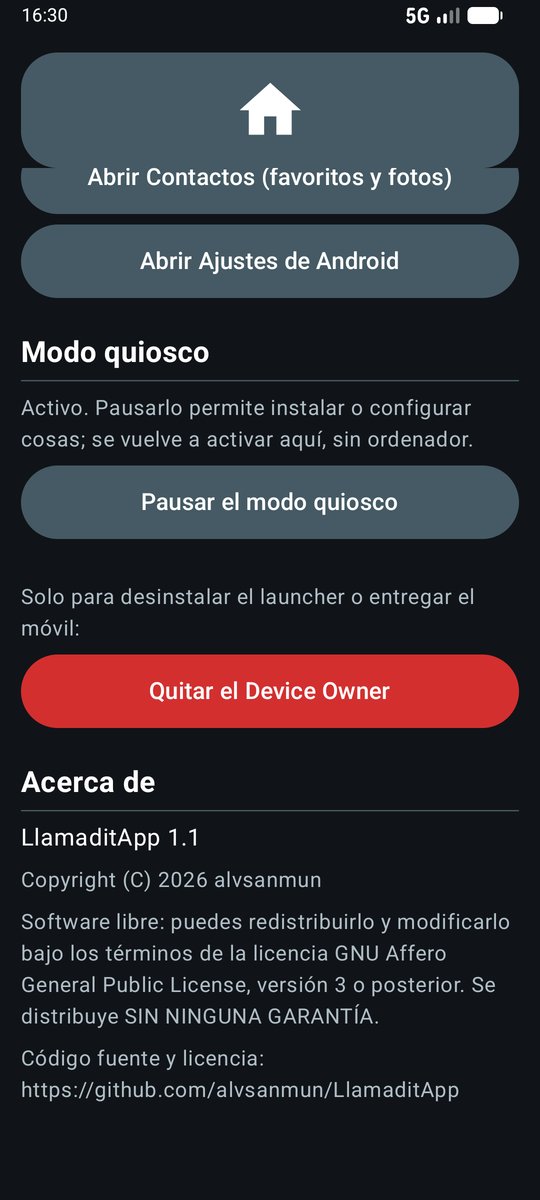
② Pause kiosk mode.
⛔ Not the red button.
2Check that "USB debugging" is still on
It is the option you turned on when you installed LlamaditApp. It usually stays on, but it is worth checking:
- In the panel, tap Open Android settings.
- Go to the bottom of Settings → Developer options and check that USB debugging is on.
- Samsung only: in Settings → Security and privacy, Auto Blocker must be off; otherwise the phone will not let the computer install anything.
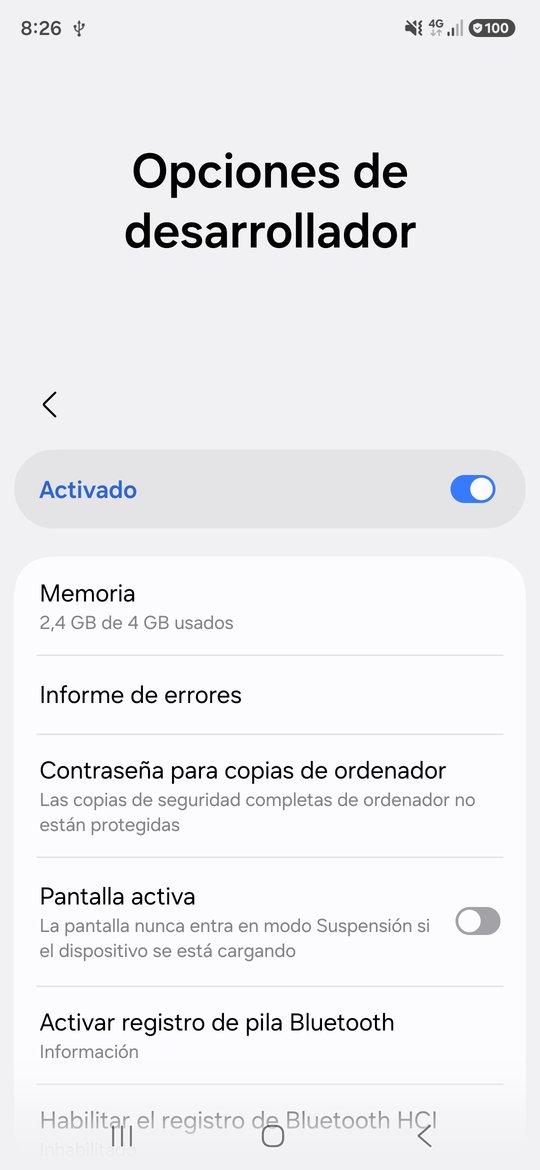
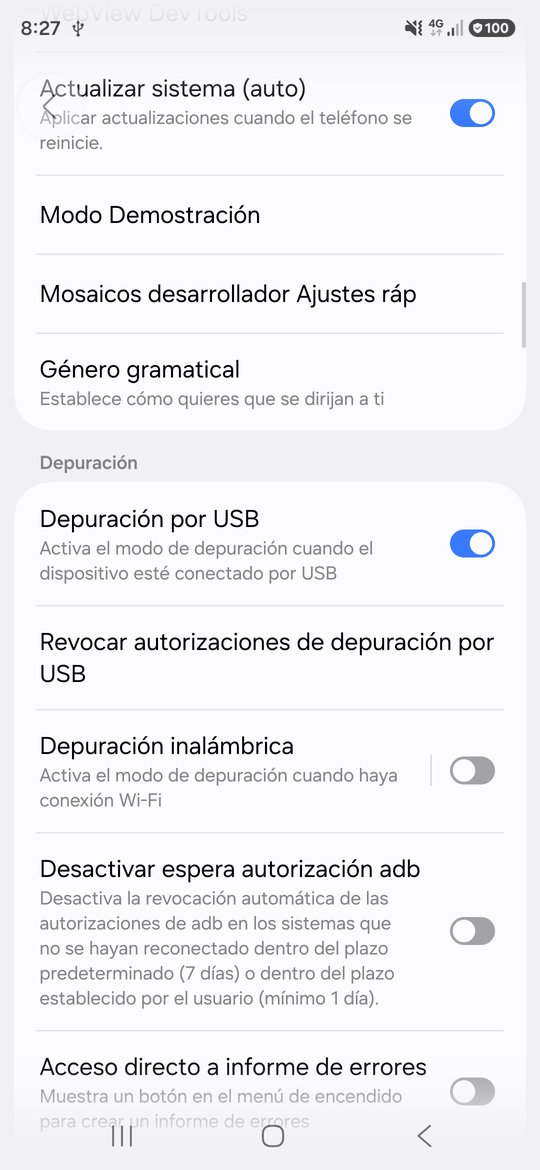
If Developer options has disappeared (this can happen after a major Android update), turn it on again as in step 5 of the installation guide.
Press the phone's home button to go back to LlamaditApp.
3Download the new installer
Even if you still have the installer from last time, download it again: the current one explains the update better.
- On the computer, open the latest version page and click Instalador-LlamaditApp-Windows.zip.
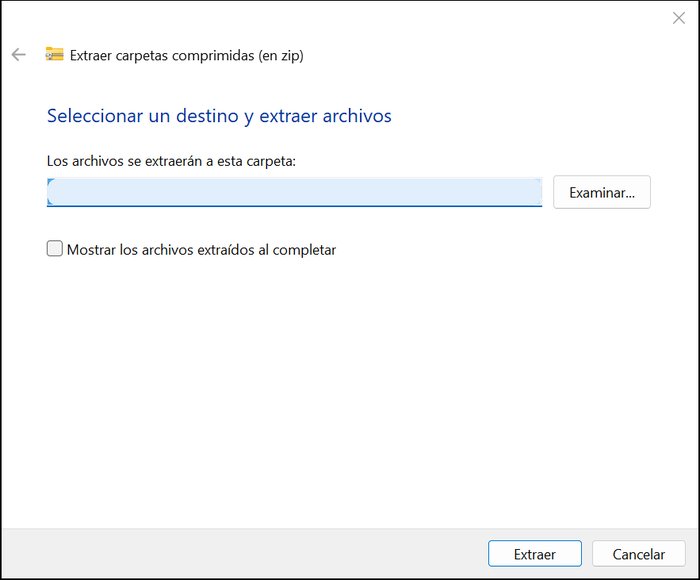
- In the Downloads folder, right-click the file → Extract All… → Extract.
- The LlamaditApp-Instalador-Windows folder opens.

4Connect the phone and run the installer
- Connect the phone to the computer with the USB cable. If the phone asks what to use USB for, choose Transferring files.
- In the installer folder, double-click Instalar LlamaditApp.bat. If Windows shows "Windows protected your PC", click More info → Run anyway.
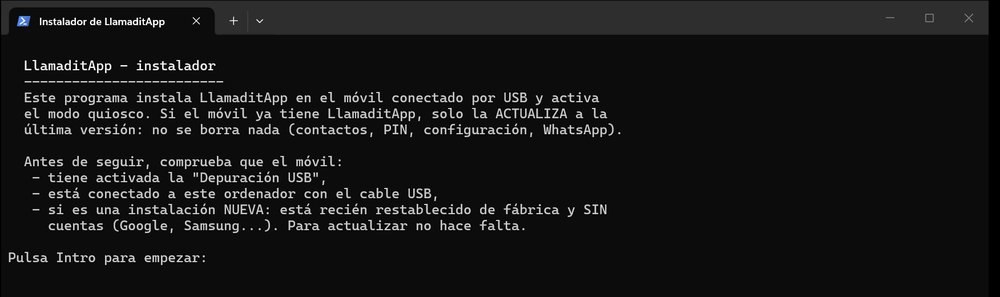
- Read the first screen and press Enter.
- If the phone shows "Allow USB debugging?", tick Always allow from this computer and tap Allow.
- The installer downloads the latest version, detects that LlamaditApp is already installed and only updates it. At the end it tells you which version it updated from and to:
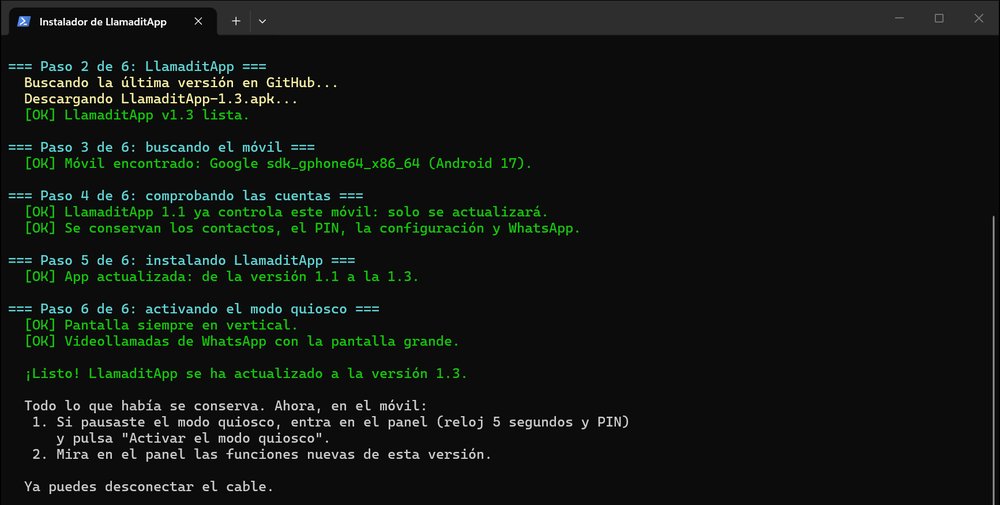
Look for the lines "ya controla este móvil: solo se actualizará" (it already controls this phone: it will only be updated) and "App actualizada: de la versión 1.1 a la 1.3" (app updated from version 1.1 to 1.3). The screenshot is of an update from 1.1 to 1.3: yours will show your version and the latest one. Press Enter to close the window and unplug the cable.
5Check the phone and turn kiosk mode back on
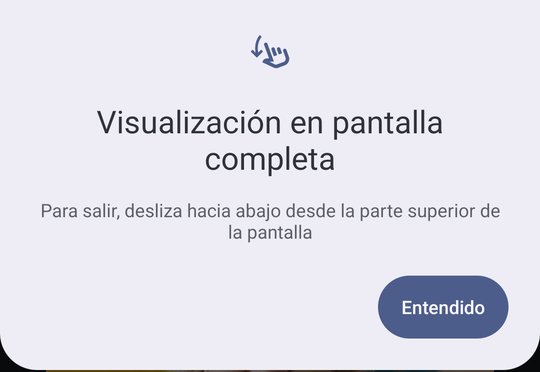
- LlamaditApp restarts automatically with the new version. If the "Viewing full screen" notice appears, tap Got it (it is an Android notice that appears only once).
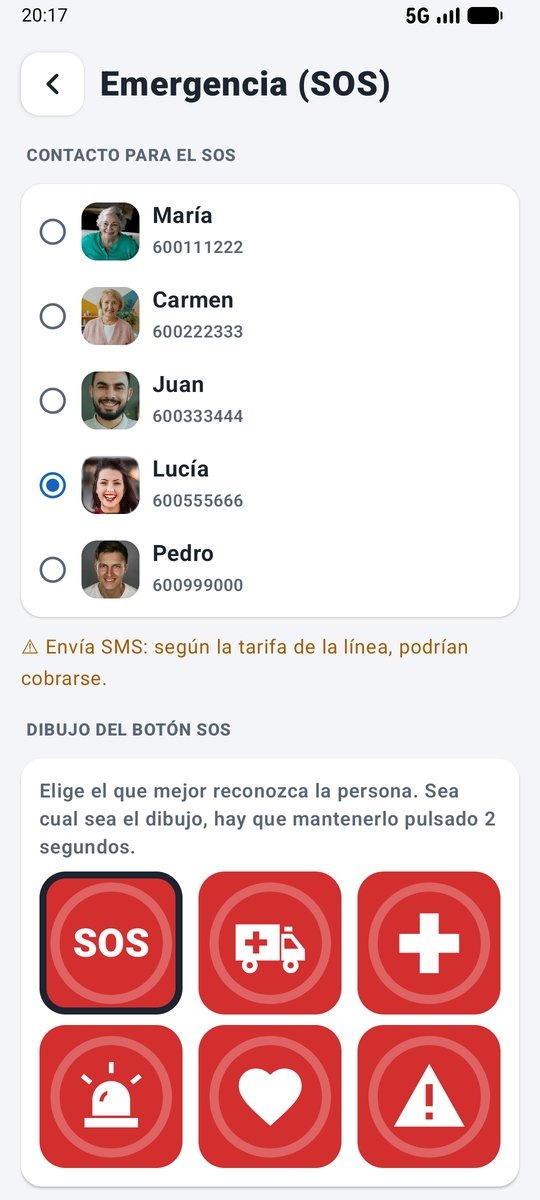
- Open the panel (hold the clock for 5 seconds and enter your usual PIN). The panel was redesigned in version 1.7: it is clearer and divided into sections. Check that the contacts (People), the SOS contact (Emergency (SOS)) and the rest are still there.
- On the dark blue card at the top of the front page, which says Kiosk mode paused, tap Turn on. If you are coming from 1.9 or later, open LlamaditApp and tap Turn on kiosk mode directly. The new version appears in the PIN and kiosk mode section, at the end (About).
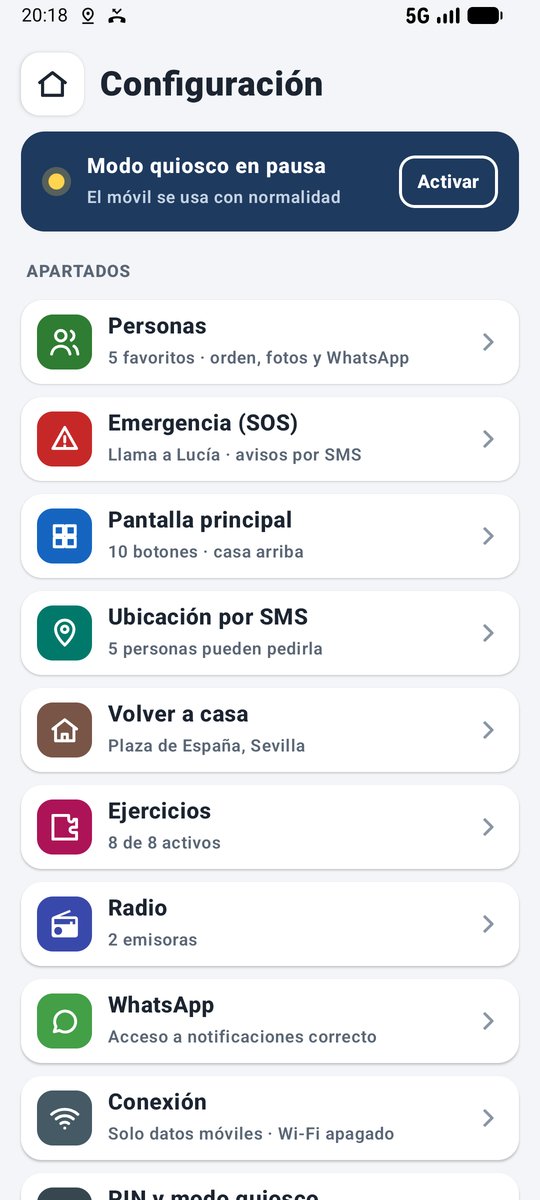
✅ All done.
The home screen stays exactly as before; new features come switched off until the caregiver turns them on.
6Set up what is new
What is new in the latest versions, all from the caregiver panel:
| What's new | Where it is explained |
|---|---|
| Pills (1.9): at each time, the photo of each box and how many to take; the person answers with the green button (taken) or the red one (not taking it) and you see it in the activity and in the dose history, with a photo of each box (1.9.1) | Guide, step 9.9 |
| Newspapers (1.9): 42 free Spanish newspapers and magazines by section, with photos, large text and read aloud; the full story opens without cookie banners or ads covering it | Guide, step 9.10 |
| Camera and photos (1.9): take photos with the back or front camera and look at them, with very simple buttons. Turned on in Home screen, remotely too | Guide, step 9.7 |
| Low battery warning (1.9): a picture of the phone and the charger when the battery drops below the level you choose | Guide, step 9.8 |
| Pausing kiosk mode (1.9): the phone works like a normal one, with its usual home screen, until you turn kiosk mode back on; pausing and resuming are instant, and it can be turned on remotely | Features: caregiver panel (in Spanish) |
| Stop ringing (1.8.1): while the phone is ringing, the button in the caregiver app or website turns red so you can stop it. The home screen switches now work remotely too | Remote management, step 5 |
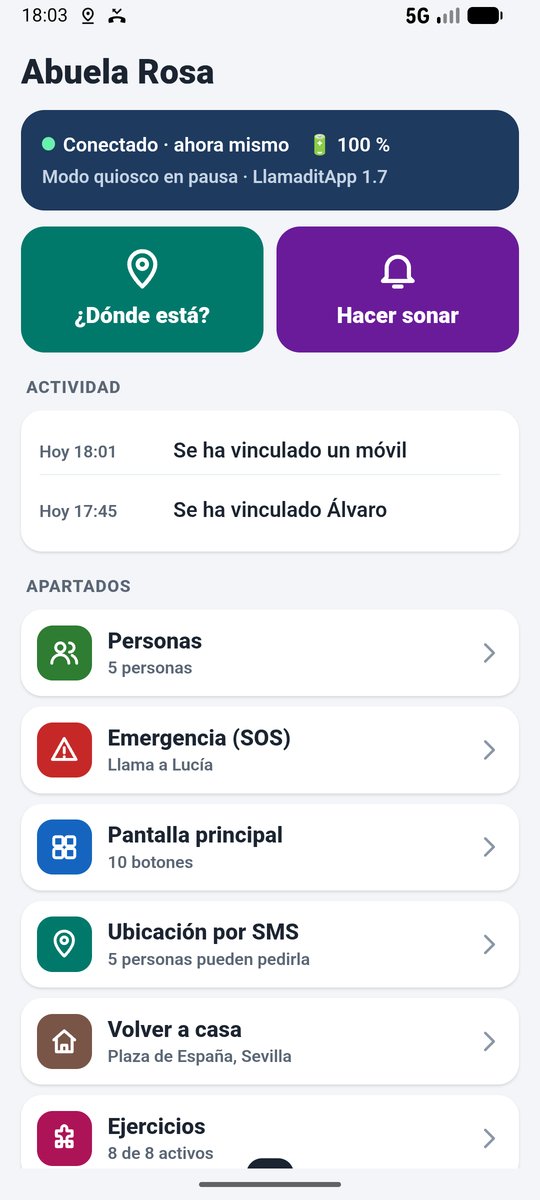
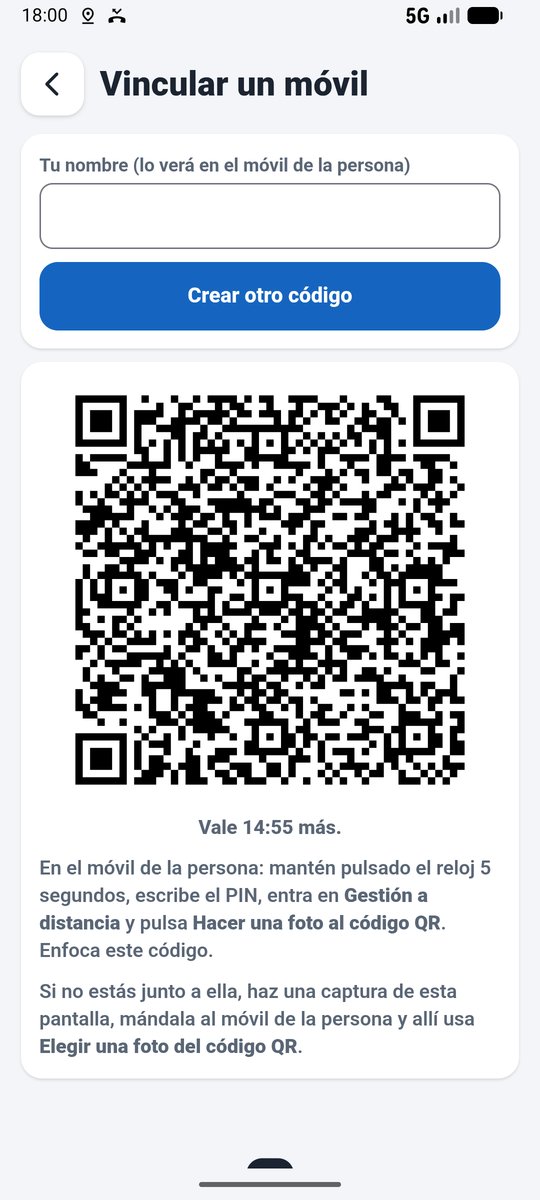
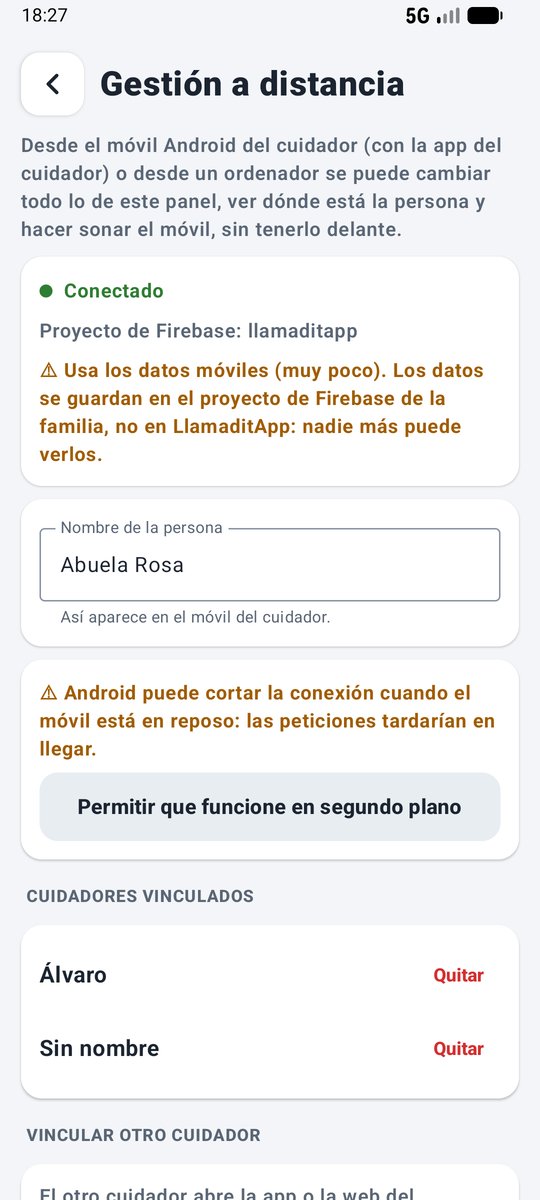
| Remote management (1.8, optional): the caregiver sees where the phone is, makes it ring and changes the settings from the caregiver app (Android) or a computer, with their family's Firebase project | Remote management |
| Add people without leaving LlamaditApp (1.8): its own form with photo, name, number and WhatsApp; the Contacts app no longer opens | Guide, step 8 |
| New caregiver panel (1.7): clear and divided into sections, with the kiosk mode status and what is left to review; People with photos and tags, drag to reorder, and add people without having to set the star | Guide, step 9 |
| Games with a new design (1.7): a menu with pictures, sets of 5 rounds with a prize, and maths with apples and three answers | Guide, step 9.5 |
| Radio (1.6): the logos of the stations the caregiver chooses; it also plays with the screen off and goes quiet during calls | Guide, step 9.6 |
| Set things up without interruptions (1.6): while the caregiver adds the Google account or installs WhatsApp, kiosk mode stays paused until they leave the panel; Install WhatsApp button | Guide, step 10 |
| Exercises (1.5): eight exercises for memory, attention and arithmetic, with levels that go up automatically | Guide, step 9.5 |
| Full WhatsApp (1.4): a separate button to use chats, voice notes, photos and videos, with a house tab for going back | Guide, step 9.4 |
| Button to go back (1.4): the large house at the top or an arrow at the bottom left | Guide, step 9.1 |
| Tailored home screen (1.3): move, enlarge or hide buttons, and a different picture for SOS (ambulance, cross, heart…) | Guide, step 9.1 |
| Go home (1.3): the address in large letters, a walking route with voice guidance and a photo of the front door on arrival | Guide, step 9.2 |
| Optional Wi-Fi (1.3) | Guide, step 9.3 |
| Contacts from a Google account (1.3) | Guide, step 8, option B |
| "Go home" text alerts and a warning about text message costs (1.3) | Features: Go home (in Spanish) |
And a few tips (in Spanish), such as downloading the city map in Google Maps so the route home works without data.
The full list of changes in each version is on the releases page.
7Try what is new
New features come switched off: turn them on in the panel and try them yourself before giving the phone back. Do only the ones you will use.
- Pills: add one with its photo and tap Try the warning: it should ring and show the box. Tap the green button and check that the tick appears.
- Newspapers: turn on its button in the Newspapers section, open a story and tap the speaker: it should read it aloud.
- Camera and photos: turn them on in Home screen, take a photo with each camera and check that it appears in Photos.
- Low battery: in its section, tap Try the warning.
- Pause: pause kiosk mode: the phone should switch to its usual home screen. Tap the Kiosk mode paused notification and turn it back on.
- New panel: the dark blue card on the front page should say Kiosk mode on. If it says how many things are to review, open the sections marked in amber.
- Add a person: in People, tap Add a person, give them a photo, name and number, and tap Save. They should appear straight away in People and Call.
- Reorder: drag a person's six dots and check the order in Call.
- Radio: choose stations in the Radio section and turn on its button in Home screen. Tap a logo: it should play, keep going with the screen off and go quiet if a call comes in. The red button stops it.
- Games: finish a set of 5 rounds: the prize with stickers should appear.
- The basics: make a call, receive another and check that the phone does not let you leave LlamaditApp.
8Remote management: the caregiver app, website and Firebase
Since 1.8, the caregiver can manage the phone from their own Android phone or from a computer. What you need to do depends on your case:
| Your case | What to do |
|---|---|
| I do not use it and do not want it | Nothing. It is optional: LlamaditApp works the same and does not connect to any project. |
| I want to start using it | Follow the Remote management guide from the beginning: create the Firebase project (about 15 minutes, once), install the app or website and link the phone. |
| I have been using it since 1.8 | The phone stays linked. You still need to update the caregiver app or website: guide, step 7. Nothing needs changing in Firebase: the rules have not changed. |
9If something goes wrong
| The installer says… | What to do |
|---|---|
| It cannot find the phone | Check the cable (the original one is best) and that USB debugging is on (step 2). Try another USB port on the computer. |
| It keeps waiting and the phone asks "Allow USB debugging?" | Tap Allow on the phone. If the question does not appear, check that you paused kiosk mode (step 1). |
Another version with a different signature is already installed (UPDATE_INCOMPATIBLE) | The app on the phone did not come from the official page (for example, someone built it themselves). It cannot be updated over the existing version: you would have to remove the Device Owner, uninstall it and install again, losing the panel settings. |
| The phone already has a newer version | There is nothing to update. |
| The installation fails on a Samsung | Turn off Auto Blocker (step 2) and open the installer again. |
| "Windows protected your PC" | More info → Run anyway. |
adb: just download the APK of the latest version and run adb install -r LlamaditApp-1.9.1.apk. The -r reinstalls while keeping the data.Another problem? See the troubleshooting guide (in Spanish) or open an issue on GitHub.
Screenshots from the Android emulator updating from version 1.1 to 1.3 and from later versions, in Spanish, with made-up contacts; the Settings menus are from a Samsung Galaxy A16. Click any screenshot to see it full size.