Manage their phone from wherever you are
From your own Android phone (with the caregiver app) or from a computer (with the caregiver website) you can do almost everything in the caregiver panel. This guide explains it from scratch: creating your family's Firebase project, installing the app, linking the phone and checking that it works.
What you can do
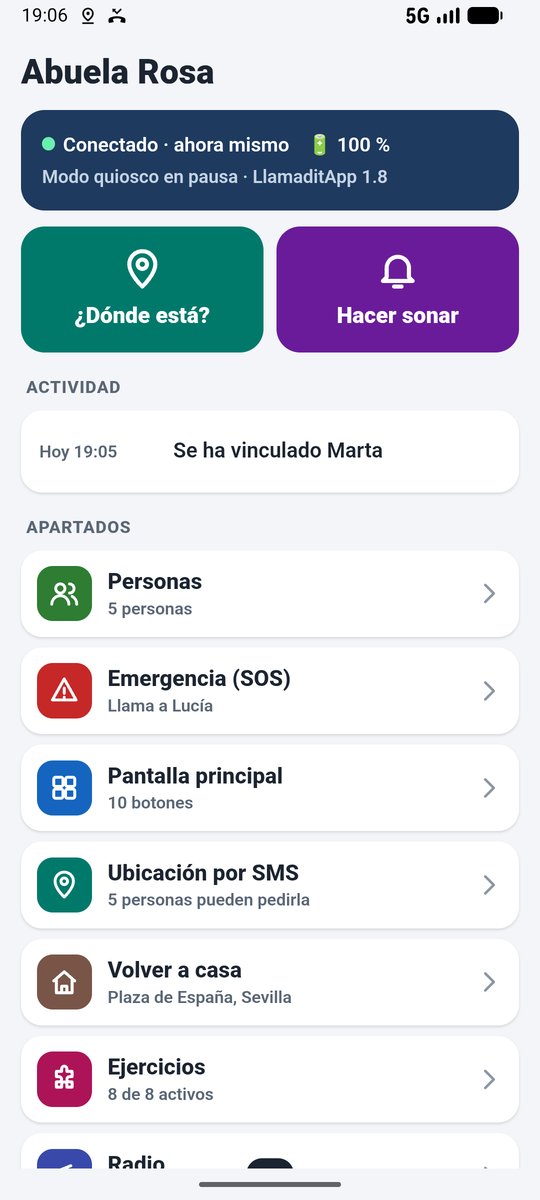
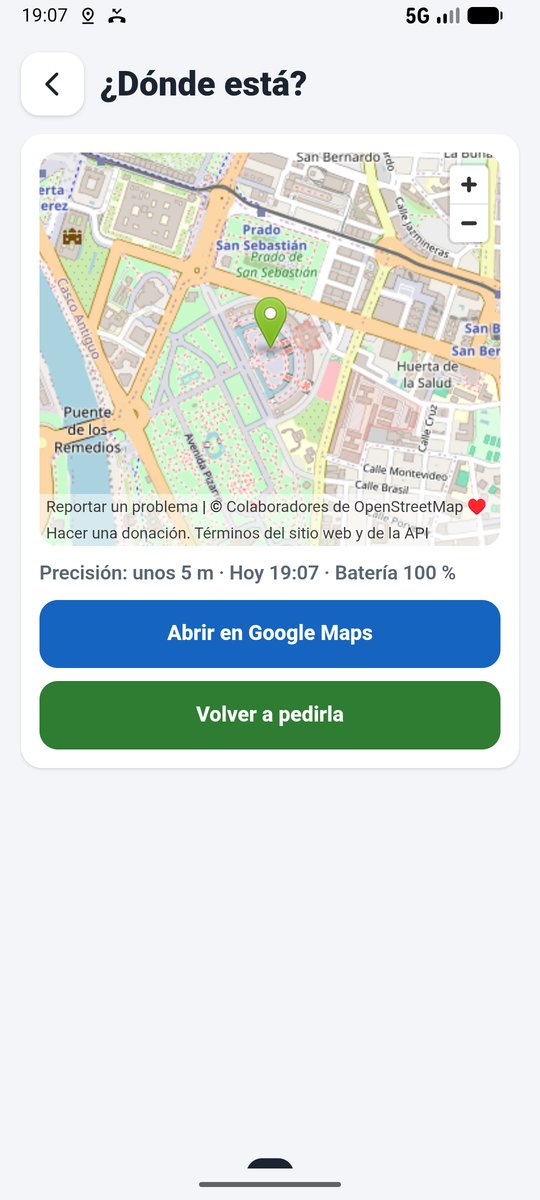
- Where is it? The position on a map straight away, with the battery level.
- Make it ring for 30 seconds, even on silent, to find it at home.
- People: add, change the photo, name or number, reorder and remove; SOS contact, WhatsApp and who can ask for the location by text.
- Home screen, SOS picture, Go home, exercises, radio and Wi-Fi.
- Low battery, pills (with a photo of each box) and newspapers; in the Pills section, the history of the last 30 days (since 1.9).
- Turn kiosk mode back on if it was left paused when the phone was handed back: the button only appears while it is paused (since 1.9).
- See the activity: whether SOS or Go home was pressed, whether they got home, or if the battery is low.
How it works
LlamaditApp has no servers and its authors keep nobody's data. For the two phones to talk to each other, each family uses its own Firebase project, a Google service that is free for this use. There are three pieces:
The data (names and numbers of the people, their small photos, the settings, the battery level and any requested locations) stays in your project, and only the caregivers you link can see it. Remote management is optional: without it, LlamaditApp works the same, and so does location by text message.
The whole process
- On a computer, once: you create the family's Firebase project and copy its details (step 2).
- On your phone or computer: you install the app or open the website and paste those details (step 3).
- With both phones in front of you: the app shows a QR code and the person's phone takes a photo of it. They are now linked (step 4).
- You check that it works (step 5) and, if there are more relatives, you invite them (step 6).
1What you need
- A Google account (belonging to the relative who will be in charge; a Gmail account will do).
- A computer with a browser to create the project (about 15 minutes, only the first time).
- The person's phone with LlamaditApp 1.8 or later, with mobile data (it uses very little) and the caregiver PIN.
- To manage it: an Android phone (for the caregiver app) or a computer (for the caregiver website).
- No credit card needed: Firebase's free plan (Spark) is more than enough for a family.
2Create the family's Firebase project
Once · On a computer
Firebase's screens change from time to time: if a button is not exactly the same, look for one with a similar name.
2.1. Create the project
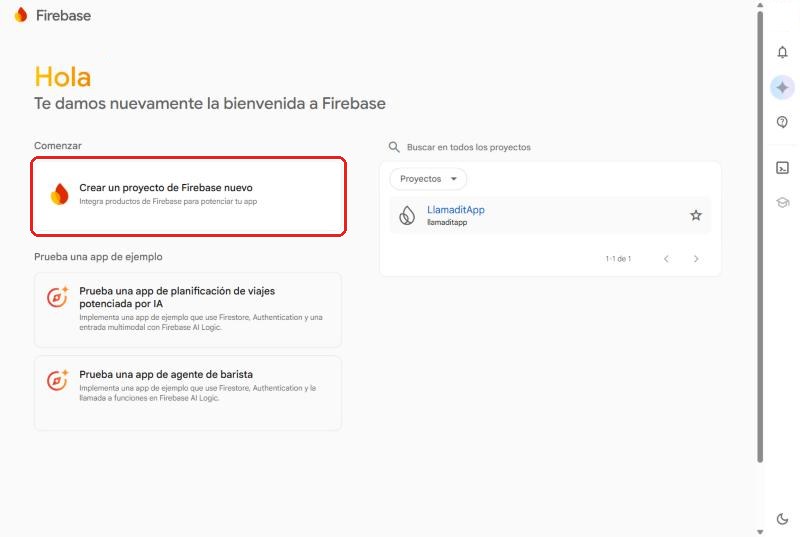
- Go to console.firebase.google.com with your Google account and click Create a new Firebase project.
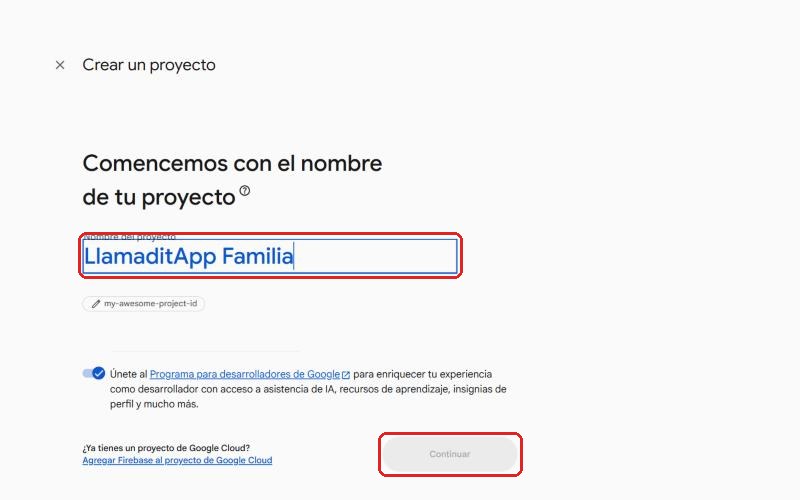
- Type a name, for example
LlamaditApp Family, and click Continue. If it asks you to accept the Firebase terms, read and accept them. - Gemini in Firebase: turn it off (it is not needed) and click Continue.
- Google Analytics: turn it off too and click Create project. Wait a few seconds and click Continue.
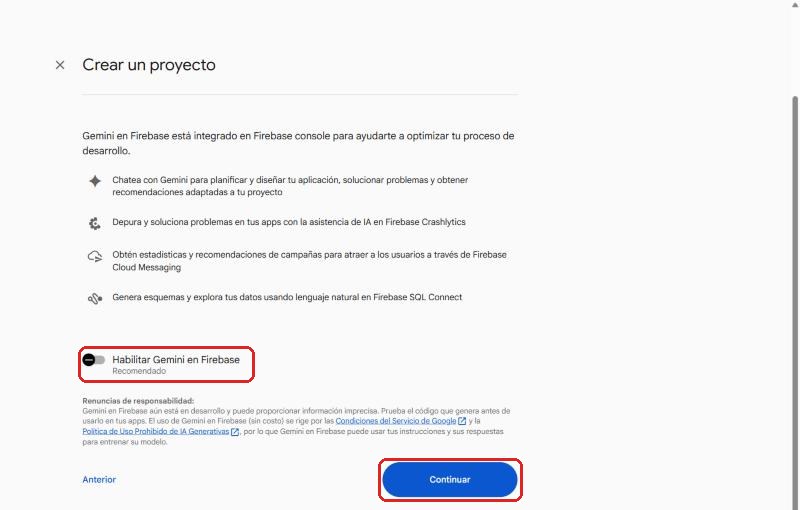
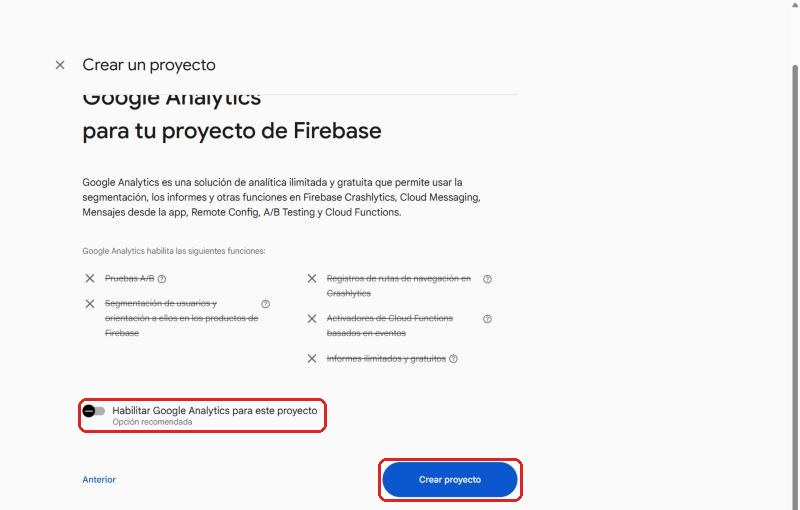
2.2. Turn on anonymous sign-in
The phones join the project without an email or password, as an "anonymous user".
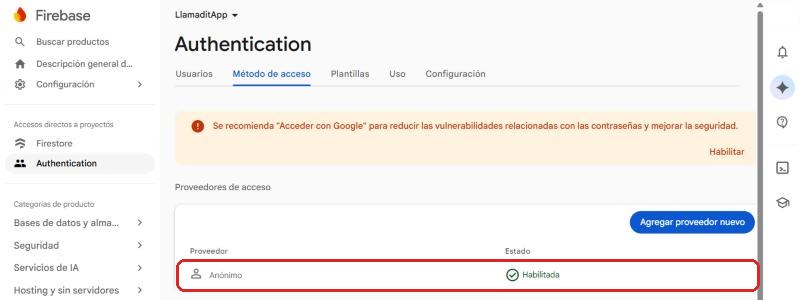
- In the left menu, open Security (or Build) → Authentication and click Get started.
- In the list of providers, choose Anonymous.
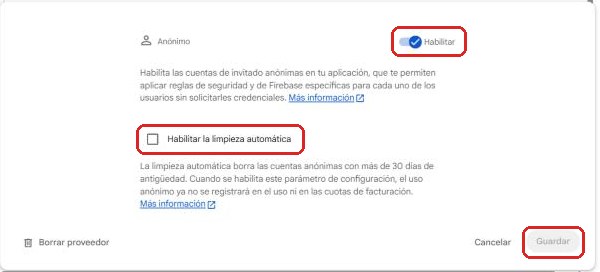
- Turn on Enable.
- Click Save. The list should show Anonymous · Enabled.
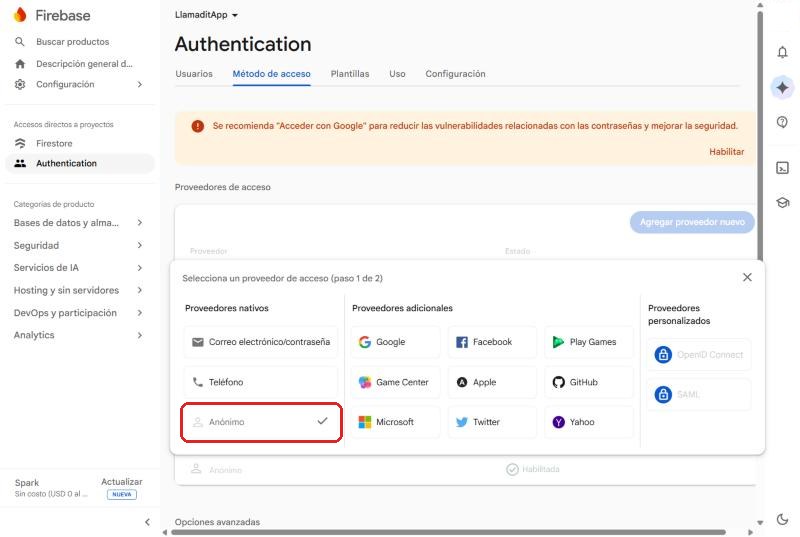
2.3. Create the database
- In the left menu, open Databases & storage (or Build) → Firestore Database and click Create database.
- Standard edition (if it asks).
- Location: choose the closest one (for example europe-southwest1 (Madrid) in Spain). It cannot be changed later.
- Choose Start in production mode and click Create.
2.4. Paste the security rules
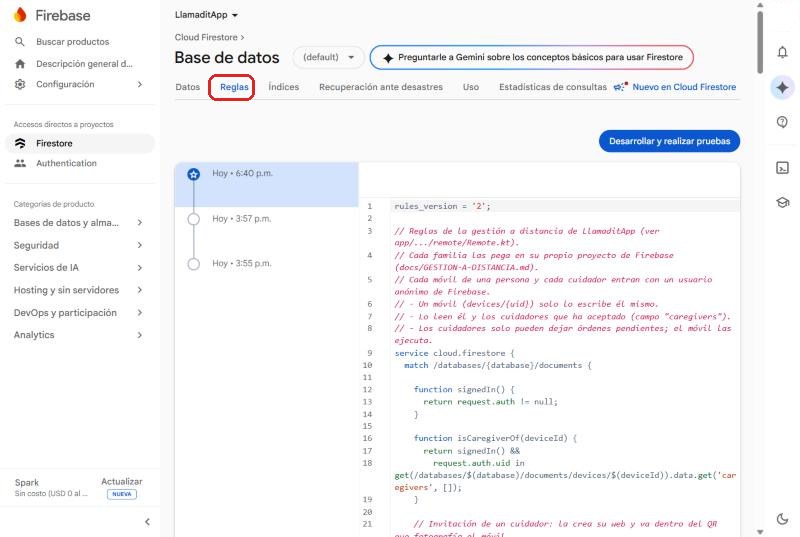
The rules decide who can read and write: each phone can only be seen by the caregivers it has accepted.
- Open LlamaditApp's rules in another tab: firestore.rules. Select everything (Ctrl + A) and copy it (Ctrl + C).
- In Firebase, in Firestore Database, open the Rules tab.
- Delete everything in the editor (Ctrl + A and Delete), paste the rules (Ctrl + V) and click Publish.
2.5. Register the web app and copy its details
These are the details you paste into the caregiver app or website. They are not secret: they only say which project is yours; security comes from the rules in the previous step.
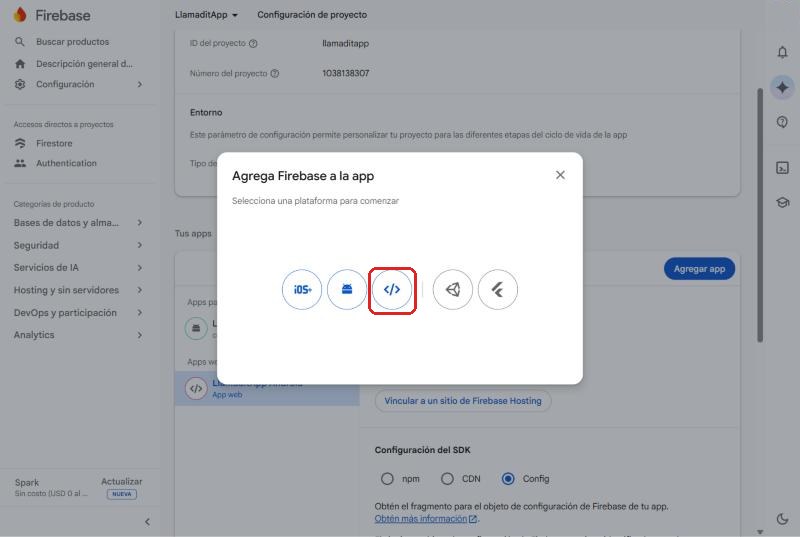
- Go back to Project overview (top left) and click Add app (or, if this is your first app, the
</>icon in the middle of the page). - Choose Web, the
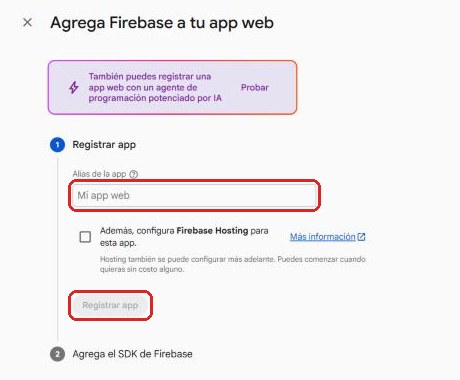
</>icon. - Type a nickname, for example
Caregiver. Do not tick Firebase Hosting. Click Register app. - A block appears starting with
const firebaseConfig = {withapiKey,projectId,appId… Click the copy button next to it and keep it (paste it into an email or a note to yourself). You will need it in step 3.
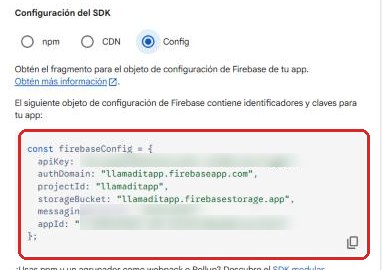
firebaseConfig blockIf you need it again later: gear icon (top left) → Project settings → Your apps → the web app → Config.
✅ The project is ready.
You do not need to go back to the Firebase console except to look up those details.
3Choose how to manage the phone
There are two options, which work the same way. You can use both at once (for example, the app on your phone and the website on the computer at home).
| Caregiver app | Caregiver website | |
|---|---|---|
| Where | Your Android phone | A computer with Windows, Mac or Linux |
| Download | LlamaditApp-Cuidador-….apk (the numbers are the version) | Web-Cuidador-LlamaditApp.zip |
| Photos of people | With the phone's camera or from the gallery | From the computer's files |
| How it opens | Like any app | Double-click Abrir la web del cuidador.bat (Windows) |
Both are downloaded from LlamaditApp's releases page, under Assets at the end:
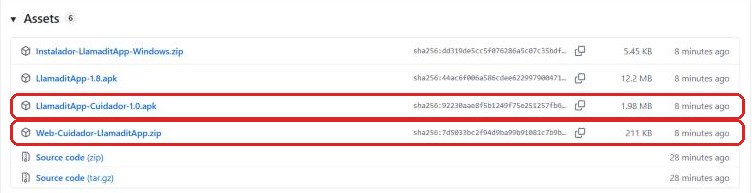
3.1. Caregiver app on your Android phone
This app goes on your phone (the caregiver's), not on the person's. Since it is not on the Play Store, Android asks for a couple of permissions the first time.
- On your phone, open Chrome and go to github.com/alvsanmun/LlamaditApp/releases/latest.
- Scroll down to Assets and tap LlamaditApp-Cuidador-….apk (the numbers are the version). If Chrome warns that the file may be harmful, tap Download anyway.
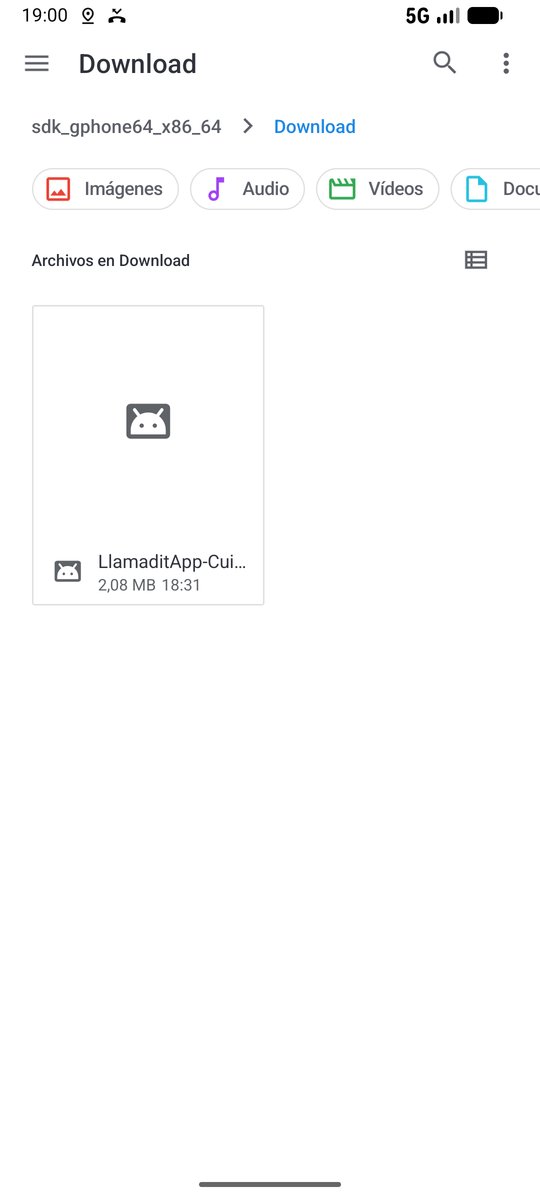
- When it finishes, tap Open on the download notice (or open the Files app → Downloads and tap the file).
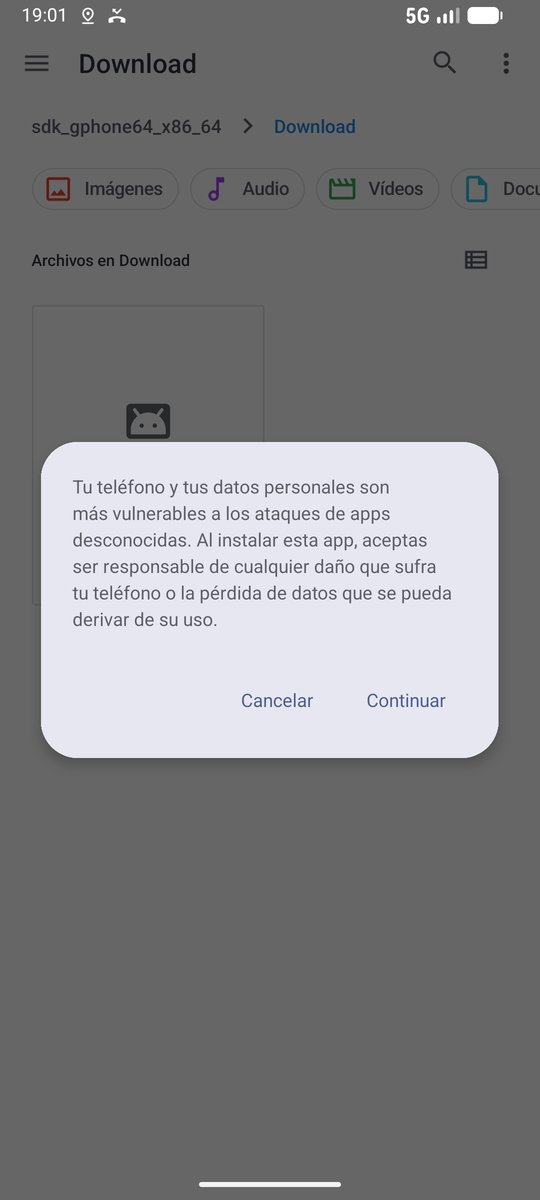
- The first time, Android says that for security it cannot install apps from this source: tap Settings, turn on Allow from this source and go back. A warning that unknown apps can be harmful may also appear: tap Continue.
- Tap Install. If Play Protect warns because the app is new and it does not know it yet, tap More details → Install anyway (or Install without scanning).
- Tap Open.
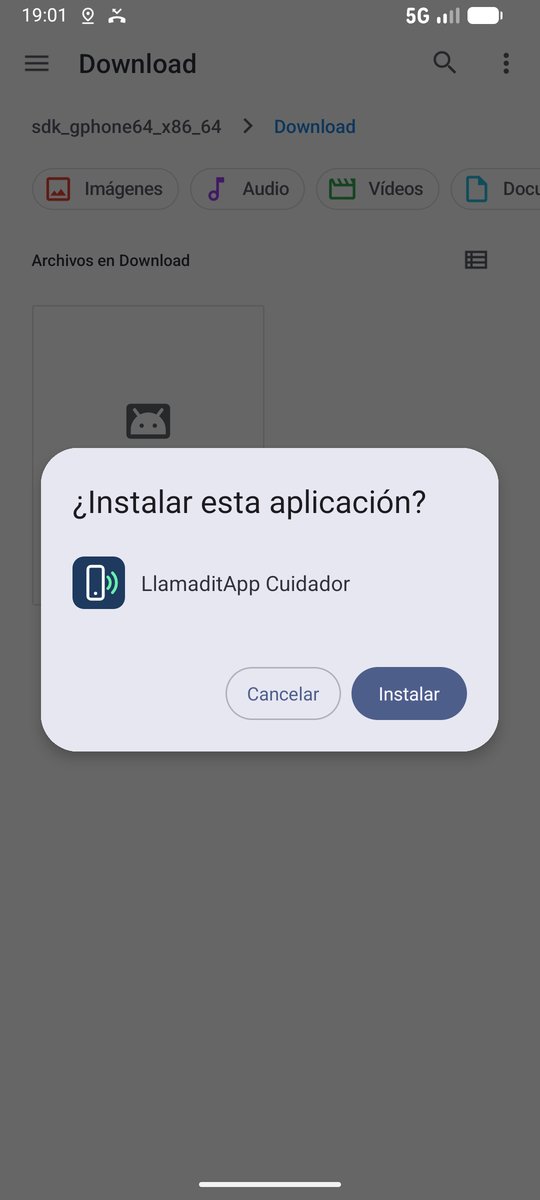
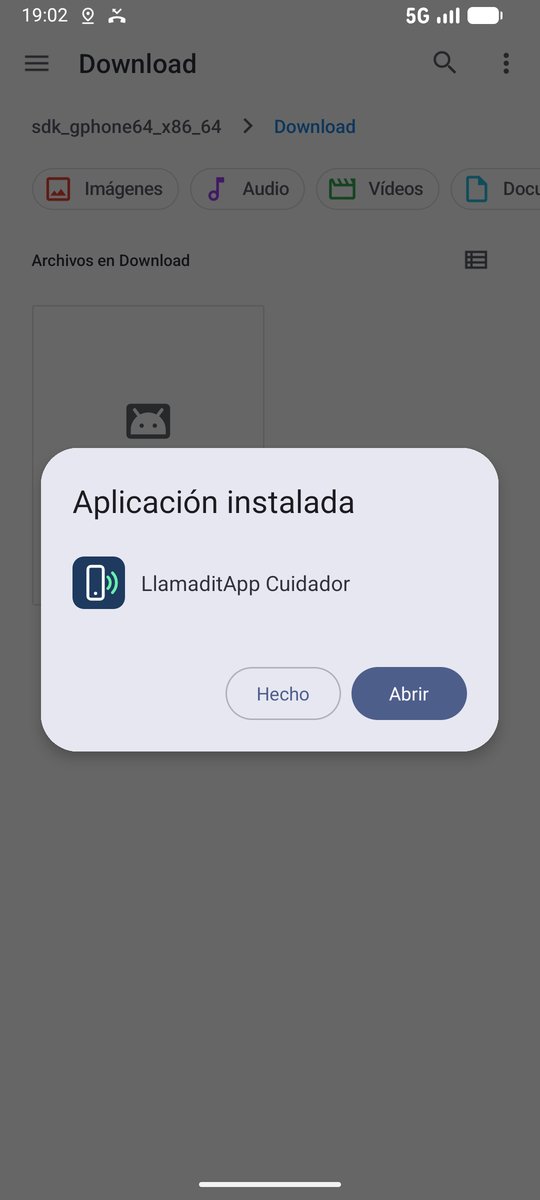
- The first time, the app asks for the project details (Datos del proyecto). Paste the
firebaseConfigblock you copied in step 2.5 (for example, email it to yourself or send it by WhatsApp from the computer and copy it on the phone) and tap Guardar (Save). If another caregiver already has the project, paste the invitation they send you instead (step 6). - The app's main screen appears, still without any phone. Go on to step 4.
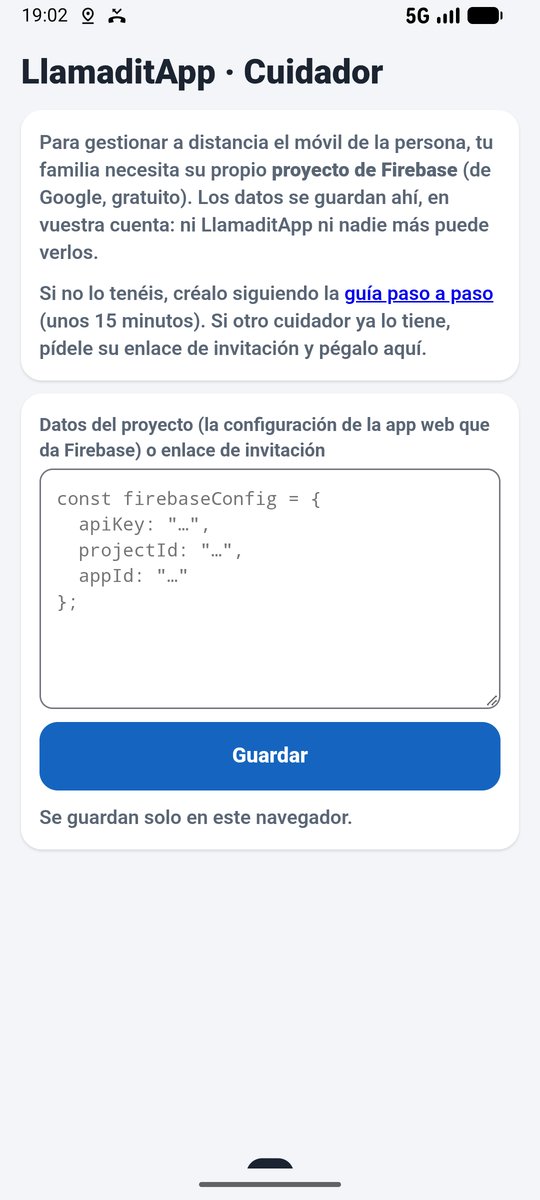
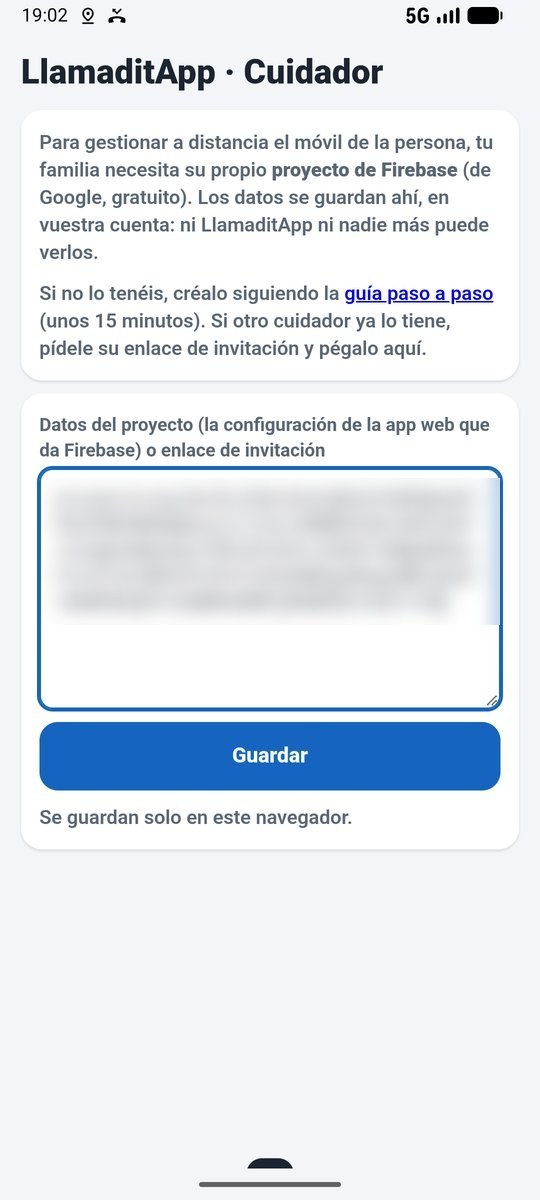
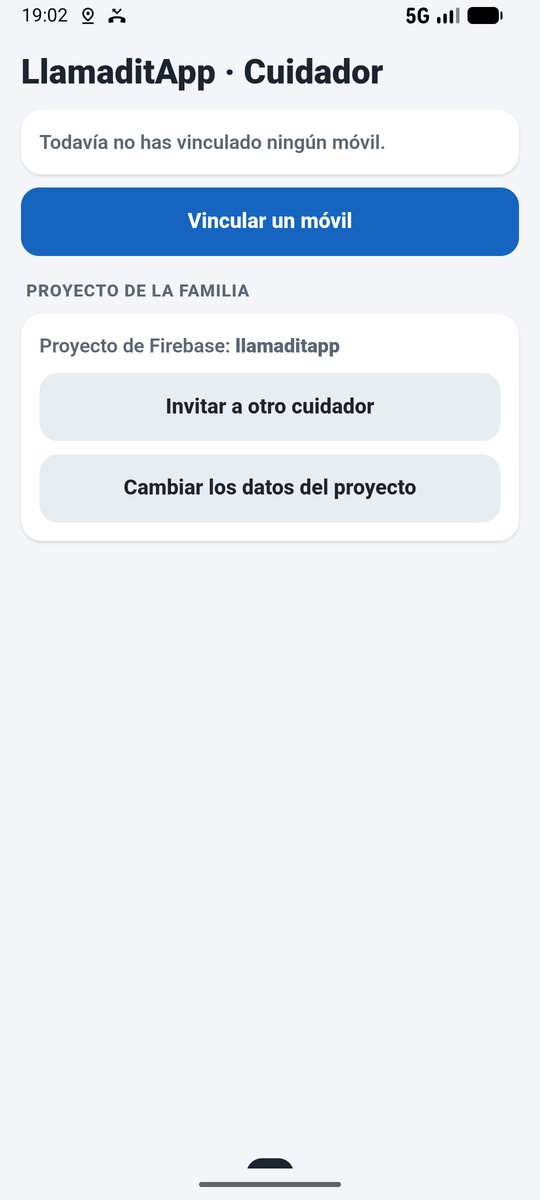
The details are only stored on your phone: next time the app opens straight away.
3.2. Caregiver website on the computer
- On the releases page, download Web-Cuidador-LlamaditApp.zip.
- In the Downloads folder, right-click the zip → Extract All → Extract. You get the LlamaditApp-Web-Cuidador folder (you can move it to Documents or the Desktop).
- Inside, double-click Abrir la web del cuidador.bat. If Windows shows "Windows protected your PC", click More info → Run anyway.
- A black window opens and, right after, the browser with the website. Do not close the black window while using the website; close it when you finish.
- The first time, paste the project details (the block from step 2.5, or another caregiver's invitation) and click Guardar (Save). They are stored in that browser: it will not ask next time.
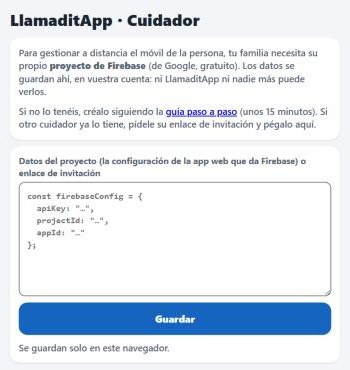
On Mac or Linux: open a terminal in the folder and type python3 -m http.server 8766; then open http://localhost:8766 in the browser.
http://localhost:8766) and the same browser: the project details are stored for that exact address.4Link the person's phone
Once per caregiver · Easiest with both phones in front of you
4.1. In the caregiver app or website
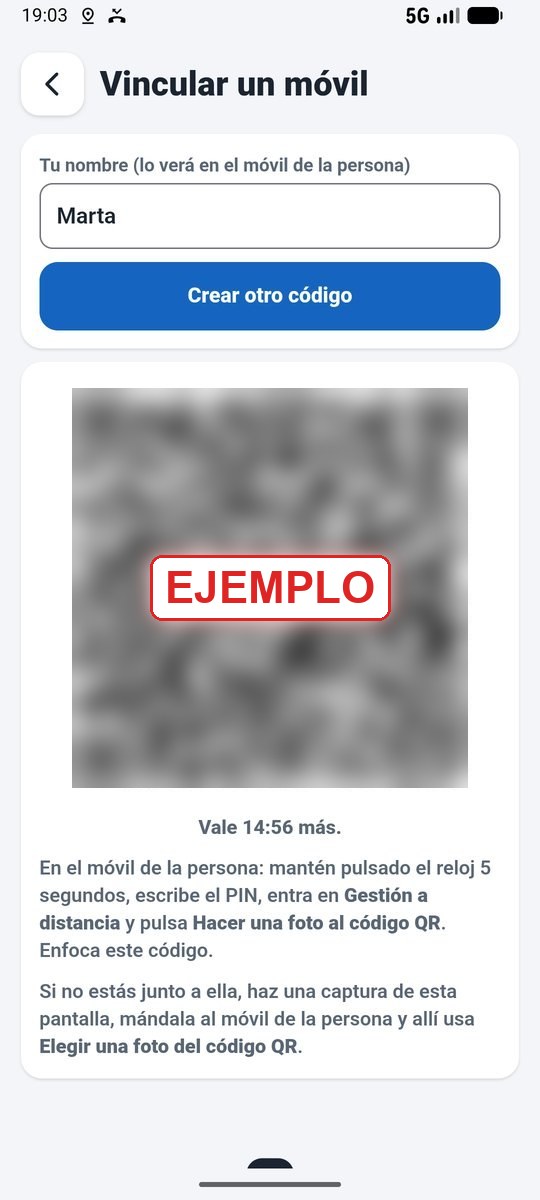
- Press Vincular un móvil (Link a phone).
- Type your name (this is how you will appear on the person's phone) and press Crear el código QR (Create the QR code). The code lasts 15 minutes and works only once.
4.2. On the person's phone
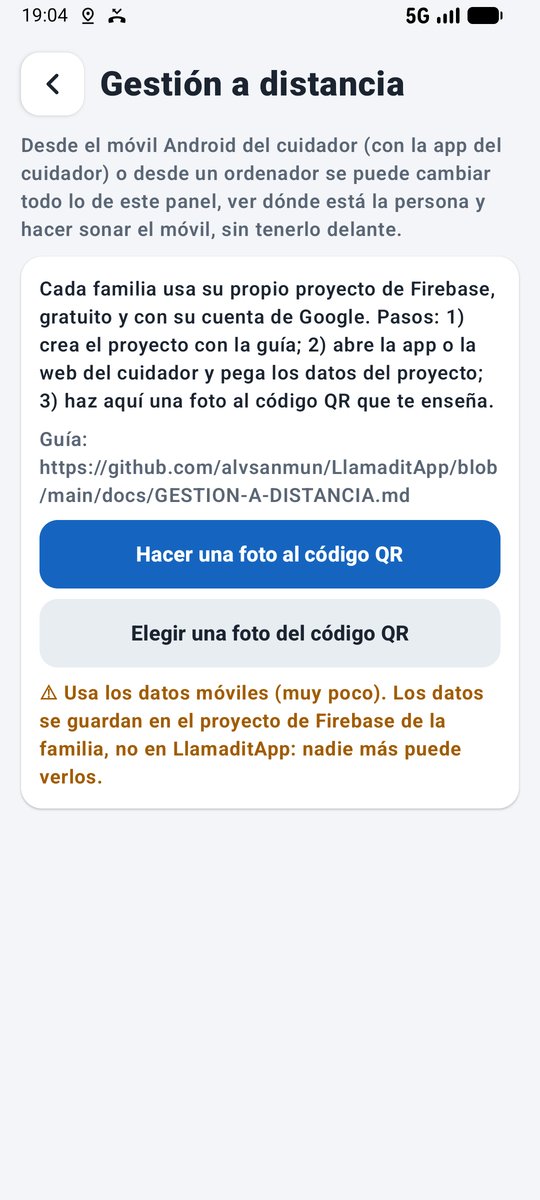
- Press and hold the clock for 5 seconds, type the PIN and open the Remote management section.
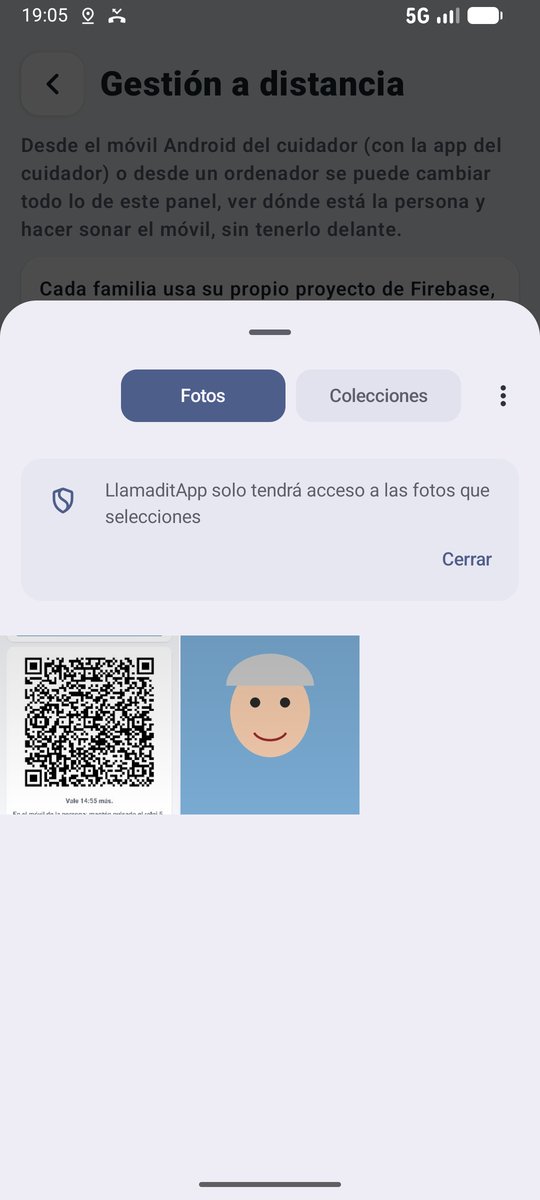
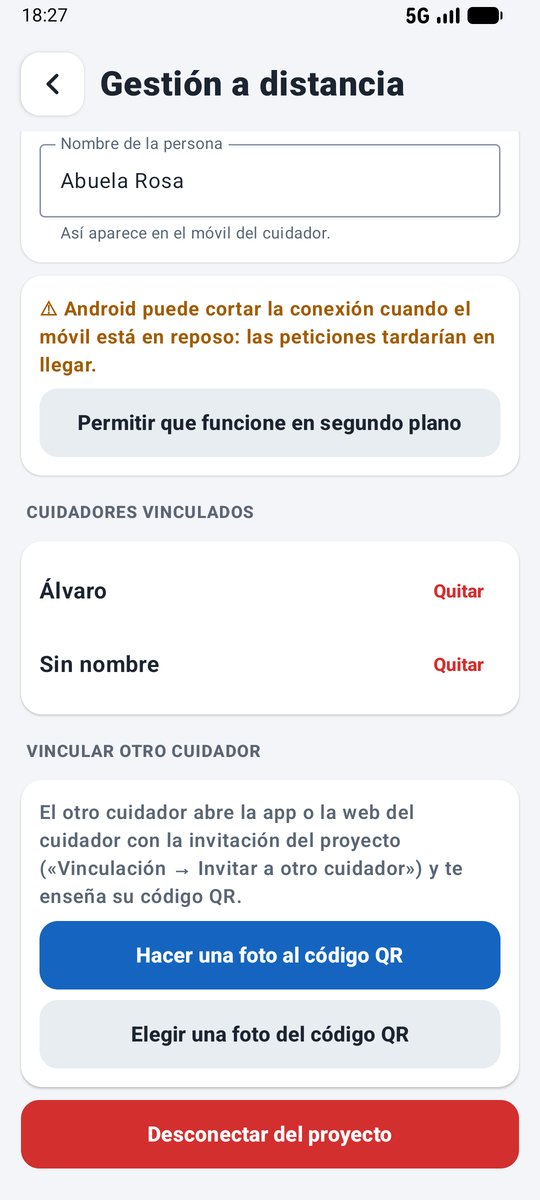
- Tap Take a photo of the QR code and photograph the code shown by the caregiver app or website (close up, without reflections, and tap the button to accept the photo).
- If you are not with the person: take a screenshot of the code, send it to the person's phone (by WhatsApp, for example) and there use Choose a photo of the QR code.
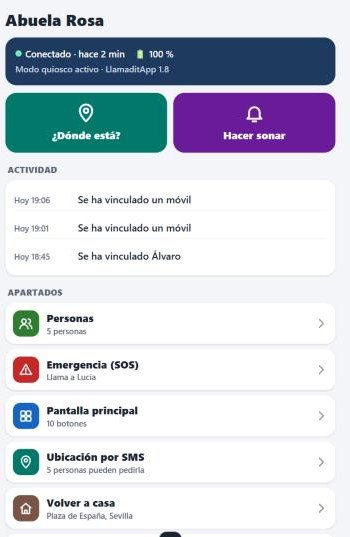
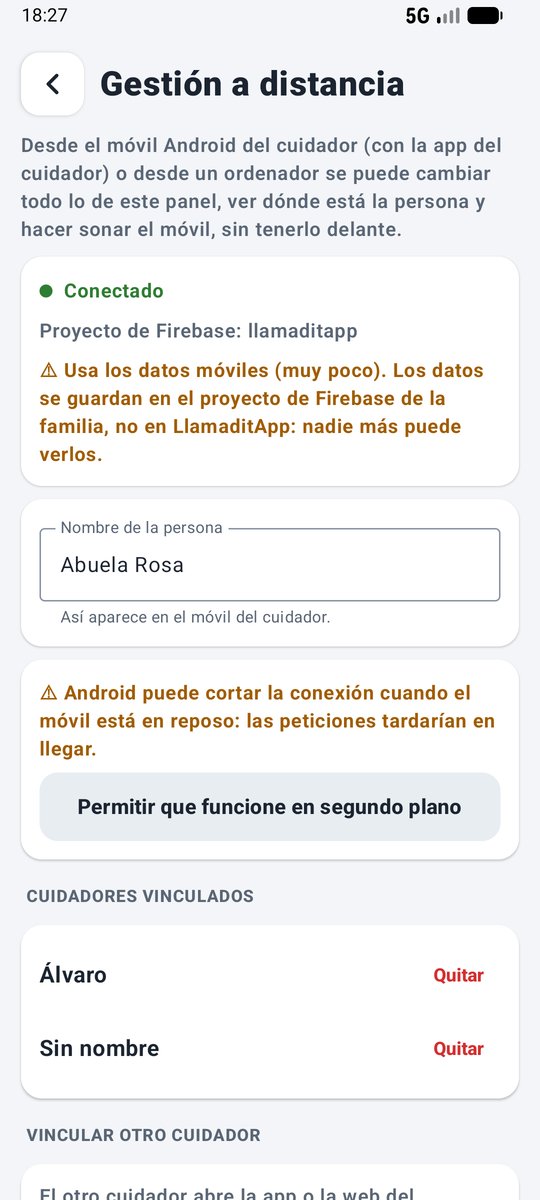
- In a few seconds it shows Connected and your name under Linked caregivers. The caregiver app or website opens the phone's page automatically.
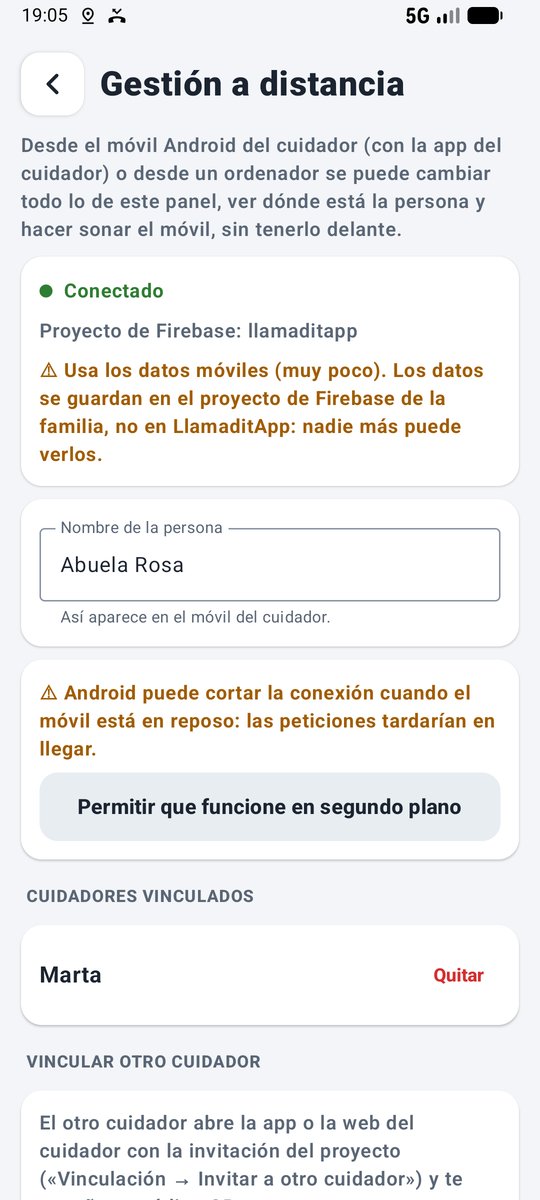
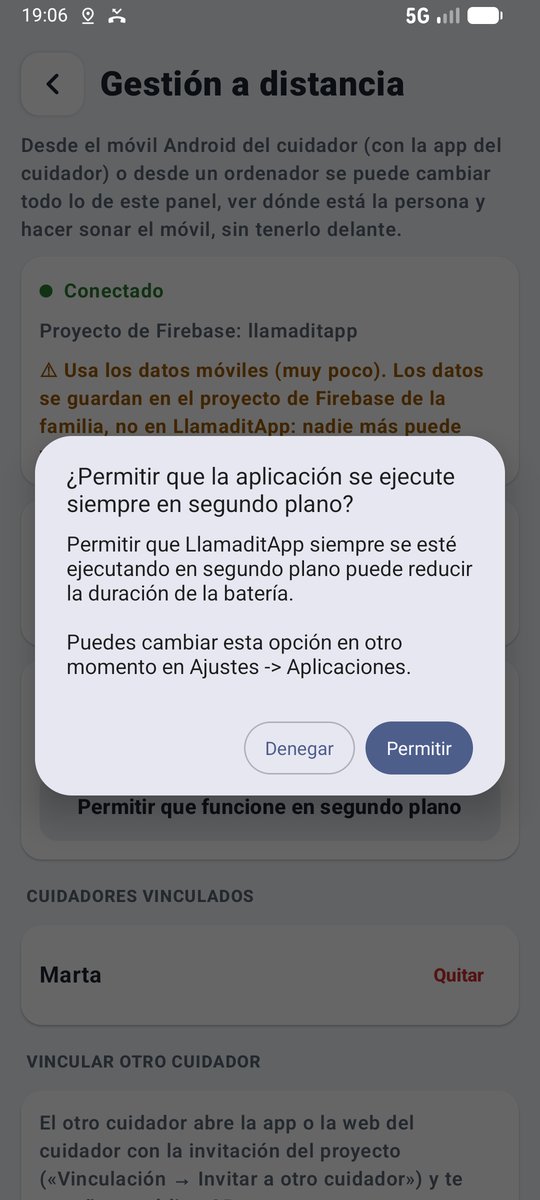
- If the panel shows the warning "Android may cut the connection while the phone is idle", tap Allow it to work in the background and then Allow. This way requests arrive even with the screen off.
- In Name of the person, type how you want them to appear in the app or website (for example, "Grandma Rosa").
- Leave the panel with the house or the arrow.
5Check that everything works
Do this with both phones in front of you before relying on it. On the phone's page, in the caregiver app or website:
- Status: the top should show Conectado (Connected), the battery level, the kiosk mode status and the LlamaditApp version.
- ¿Dónde está? (Where is it?) Press it: in a few seconds the map appears with the phone's position and battery. Repeat with the person's phone screen off.
- Hacer sonar (Make it ring): the phone should ring even on silent. While it rings, the button turns red and says Dejar de sonar (Stop ringing); press it to stop. Otherwise it stops on its own after 30 seconds. (Dejar de sonar needs LlamaditApp 1.8.1 and caregiver app 1.0.1 or the new website.)
- Personas (People): change someone's photo or name and check that the change reaches the person's phone.
- Pantalla principal (Home screen): hide a button with its switch: it should disappear from the phone straight away. Show it again.
- Actividad (Activity): press SOS on the person's phone (warn the emergency contact first). The page should show ¡Ha pulsado el SOS! (SOS pressed). Go home, arriving home and low battery are logged too.
- Pastillas (Pills, 1.9): add one with a photo of the box from the app or website and check that it reaches the phone. When the person confirms it, the activity will say Se ha tomado las pastillas de las… (Took the pills at…), and the history will show it with the photo of the box.
- Activar el modo quiosco (Turn on kiosk mode, 1.9): pause kiosk mode on the person's phone. The green Activar el modo quiosco button appears on the page: press it and the phone should go back to LlamaditApp.
6More caregivers
Each caregiver has their own app or website, connected to the same project. They do not need to create anything in Firebase.
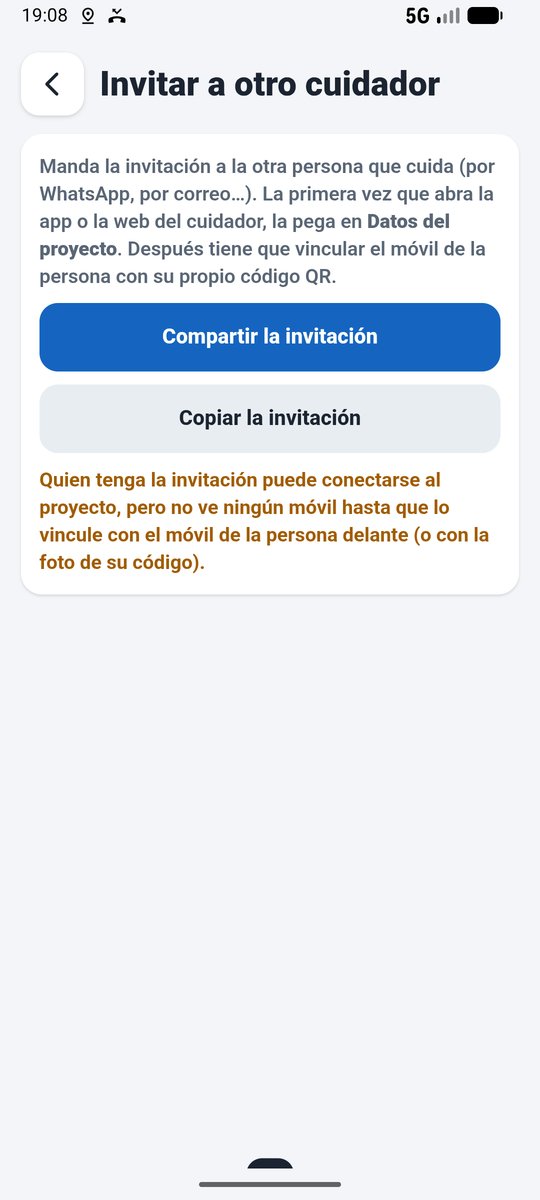
- Whoever already has remote management: in the app or website, Vinculación → Invitar a otro cuidador → Compartir la invitación (Linking → Invite another caregiver → Share the invitation), by WhatsApp, email…
- The new caregiver installs the app (step 3.1) or opens the website (step 3.2) and, when asked for the project details, pastes the invitation.
- Then they link the person's phone just as in step 4, with their own QR code.
All linked caregivers appear in the phone's panel, in Remote management → Linked caregivers, and can be removed there. Each one can also unlink from their app or website (Vinculación → Desvincular este móvil, Linking → Unlink this phone).
7Update the caregiver app and website
Each piece is updated separately. Start with the person's phone, then update whichever you use. The phone stays linked, and the Firebase rules have not changed since 1.8, so nothing needs changing in the project.
| What | File | How to update it |
|---|---|---|
| The person's phone | Windows installer | With the update guide. Everything is kept, remote management included. |
| Caregiver app | LlamaditApp-Cuidador-….apk | It installs on top of the previous one, without losing the data, and the phone stays linked. |
| Caregiver website | Web-Cuidador-LlamaditApp.zip | Replace the old folder with the new one. The project details stay in the browser. |
Caregiver app
- On your phone, open the latest version page in Chrome.
- Scroll down to Assets, tap LlamaditApp-Cuidador-….apk and open it when the download finishes.
- Tap Update or Install, as in step 3.1. Do not uninstall the old one. On Samsung, if it will not let you, turn off Auto Blocker for a moment.
- Open the app: it is still connected to your project and to the person's phone.
Caregiver website
- Close the website's black window if it is open.
- Download Web-Cuidador-LlamaditApp.zip and extract it.
- Put the new folder in place of the old one and open Abrir la web del cuidador.bat. Use the same browser and address so it does not ask for the project details again.
8Questions and problems
| Problem | What to do |
|---|---|
| The app or website says it cannot connect to the project (No se puede conectar con el proyecto) | Check that anonymous sign-in is on (step 2.2) and that the details you pasted are those of the project's web app (step 2.5). |
| The phone says "Could not connect" | Check that it has mobile data and that the database and rules have been created (steps 2.3 and 2.4). |
| The phone says the code is no longer valid | More than 15 minutes have passed or it was already used: create another in the caregiver app or website. |
| It cannot find the code in the photo | Take it from closer up, with the whole code in the photo and no reflections. You can also turn up the brightness of the screen showing the code. |
| The linked phones disappeared after a month | Automatic clean-up was ticked when turning on anonymous sign-in. Untick it (step 2.2) and link again. |
How much does it cost?
Nothing. Firebase's free plan allows 50,000 reads and 20,000 writes a day; a phone with several caregivers uses a small part of that. Without a credit card it cannot charge anything: if it were ever exceeded, it would stop responding until the next day.
Who is responsible for the data?
Your family: the project is yours. If you delete the project in the Firebase console (Project settings → Delete project), everything is deleted.
Does it use much data on the person's phone?
Very little: a few kilobytes for each change and each request.
What if I switch to a different project?
In the phone's panel, Remote management → Disconnect from the project, and link it again with the QR code of an app or website connected to the new project.
Screenshots of the caregiver app and website, in Spanish, with made-up contacts. The Firebase console screens may change. Click any screenshot to see it full size.